3. Choose your Event Type from the dropdown menu. (Event Types reference the subject or event that will show on your planner)
- If the Event Type is used regularly at your school but not on the Event Type list you can add it by going to Event Types in the top light blue menu.
- If the Event Type is one that is personal to you then add it to Personal Event Type. Then click in the Colour field to select a colour.
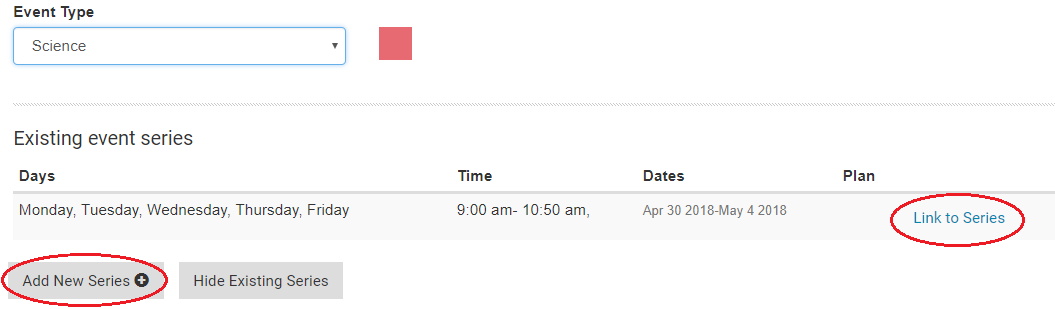 5. Once you have selected an Event type you can choose your frequency.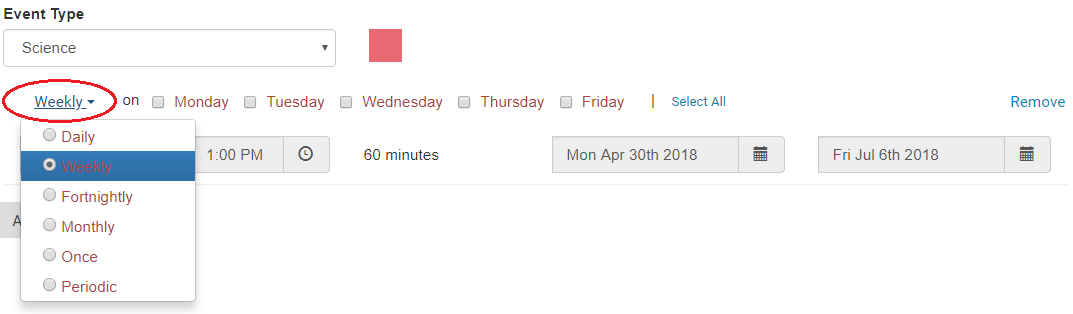
- Daily (for an event that runs every day)
- Fortnightly
- Monthly (once per month on the day you select)
- Once (a one off event)
- Periodic (for lessons that run at different times during the week or 6 day + timetable)
6. Select the days on which the event occurs.
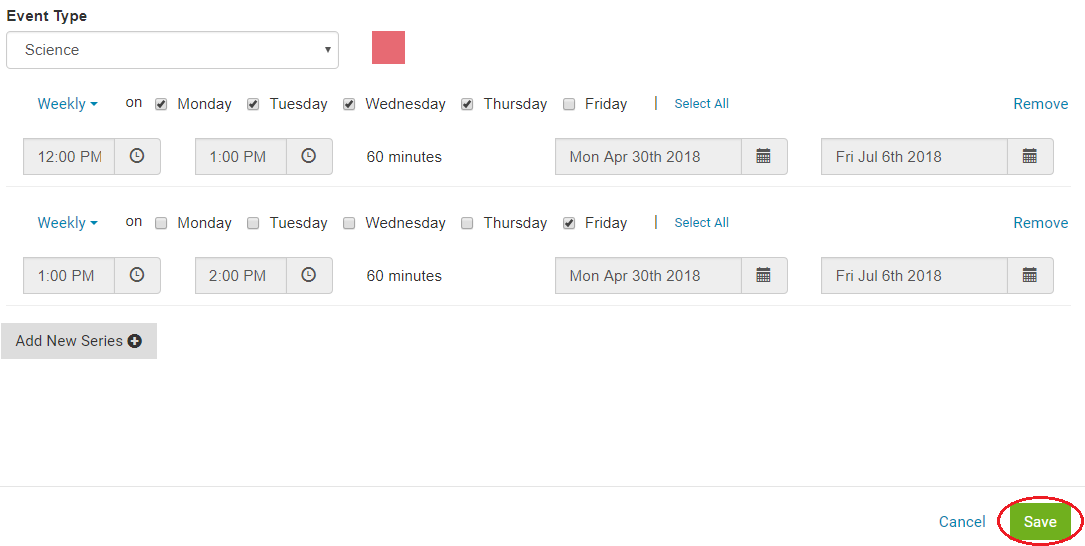
7. Click on the clock icon to select the start and end time. If the event happens at different times of day during the week, you will need to Add New Series. For example, if you have Science from 10:30-11:00am, Mon to Wed, but from 11:40-12:00pm on Thurs, you would set up two series under the event heading Science. Your Science plan would be linked to both series.

9. Click Save at the bottom of the page.